How to Set Global WooCommerce Backorders with Product-Level Exceptions
If you want to apply one backorder rule across most of your WooCommerce store without forcing every product to behave the same way, product-level exceptions are what make that possible. A lot of stores want a simple default for most of the catalog, but still need certain products to stay outside that rule because of supplier limits, fulfillment differences, or special stock handling. Backorder Manager is built around exactly that kind of setup: a storewide or category-based rule, with the option for individual products to opt out when needed.
The problem is that once you start mixing a general backorder policy with a handful of exceptions, the default WooCommerce workflow gets harder to manage. What seems simple at first can turn into a lot of repeated product checks, manual changes, and second-guessing about which products are supposed to follow the broader rule and which ones are not. Backorder Manager gives you a cleaner way to handle that without turning your catalog into a maintenance project.
Why stores need exceptions in the first place
Not every product belongs under the same backorder rule.
You may have a catalog where most products should allow backorders, but a few should stay blocked. You may want a storewide policy in place, but still need certain items to keep their normal stock behavior. You may even have products in the same category that should be treated differently from the rest.
That is where a simple global on-or-off approach starts to fall short. A broad rule is helpful, but only when there is still room for special cases. Backorder Manager is designed for that by letting individual products ignore the broader rule when needed.
Why the manual approach gets messy
Without a better system, store owners usually end up managing this by memory and repetition. They set a broad policy, then keep checking products one by one to make sure the exceptions are still correct.
That may be manageable for a small store, but it gets harder as the catalog grows. New products get added. Existing products change. Categories expand. Special cases pile up. Before long, what should have been a clean inventory rule becomes something you have to keep revisiting manually.
If you are trying to solve this at the store level first, you may also want to read How to Enable Backorders for All Products in WooCommerce
A cleaner way to handle global rules and product exceptions
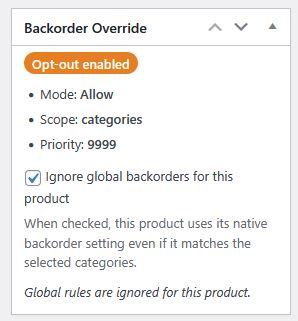
Backorder Manager makes this much easier by letting you choose a broader backorder policy and then exclude individual products when they should keep their own behavior.
That gives you a much more practical setup for real stores. You can use one rule for most of the catalog, while still protecting the products that should not follow it. Instead of treating exceptions like a workaround, you can make them part of the way the store is managed from the start.
For stores that need this kind of flexibility, the WooCommerce backorder plugin with product exceptions page gives a full overview of how the plugin works.