
FORGOT YOUR DETAILS?

Temporary Redirect Shop for WooCommerce

Temporary Redirect Shop for WooCommerce gives you a clean way to redirect your public storefront to a page of your choice while you work on maintenance, launches, seasonal holds, or private events. Instead of shutting down your entire site or using a generic maintenance mode plugin, you can control how your WooCommerce store behaves during temporary changes.

You can decide which visitors are affected, keep administrators and shop managers exempt, and allow important store paths to remain accessible when needed. That makes it easier to pause the public shopping experience without giving up control of your store behind the scenes.

A better way to temporarily close or redirect a WooCommerce store

There are times when you need to change what shoppers see without disrupting how you manage your store.

You may be preparing for a launch, updating products, handling a short maintenance window, pausing part of the storefront for a seasonal break, or temporarily closing your WooCommerce store for a private event.

Temporary Redirect Shop for WooCommerce is built specifically for this kind of storefront control. It lets you redirect public WooCommerce pages to a page you choose while keeping store management simple for the people who need access.
Temporary Redirect Shop for WooCommerce in a simple way

Use it when your store needs a temporary redirect

Temporary Redirect Shop is especially useful for:

  • maintenance windows
  • pre-launch and post-launch holding pages
  • seasonal storefront pauses
  • private sales or private events
  • temporary customer-facing redirects while staff keeps working normally

These are the kinds of situations where you want shoppers to see a clear destination page, while your team continues working in the background without unnecessary friction.

What the plugin does

Redirect public WooCommerce pages

When enabled, the plugin redirects public WooCommerce pages such as the shop, product pages, category pages, cart, checkout, and account pages to the target page you select. That gives you a straightforward way to temporarily change the storefront experience without rebuilding your site.

Choose who gets redirected

You can choose which audiences are affected, including logged-out visitors, Customers, and Subscribers. This makes it possible to redirect the public storefront while still keeping access available for the people you want to leave untouched. If you want a closer look at that use case, see how to redirect logged-out users or guests in WooCommerce.

Keep administrators and shop managers exempt

Admins and Shop Managers stay exempt, which helps you keep working on the store while redirects are active. That is especially useful during maintenance, merchandising updates, or staging a launch sequence on a live site.

Keep important paths available

Not every temporary storefront redirect should block every WooCommerce path. The plugin lets you whitelist Woo endpoints such as order-received, view-order, and lost-password so important customer flows can stay accessible when needed. For a deeper look at that setup, read how to keep checkout, order confirmation, and password reset accessible during a WooCommerce redirect.

Allow exceptions by URL

You can whitelist specific URL prefixes, which is useful when you want selected pages or sections of your site to remain available during a redirect period.

Allow exceptions by product category

You can also whitelist product categories, including parent and child category logic with child overrides. This gives you more control when only part of the catalog should remain visible. If you want to use redirects more selectively, see how to hide most of a WooCommerce store except certain categories or URLs.

Keep visibility for privileged users

The plugin includes an admin-bar indicator and an optional small front-end banner for privileged users, making it easier to see when redirects are active.

How it works

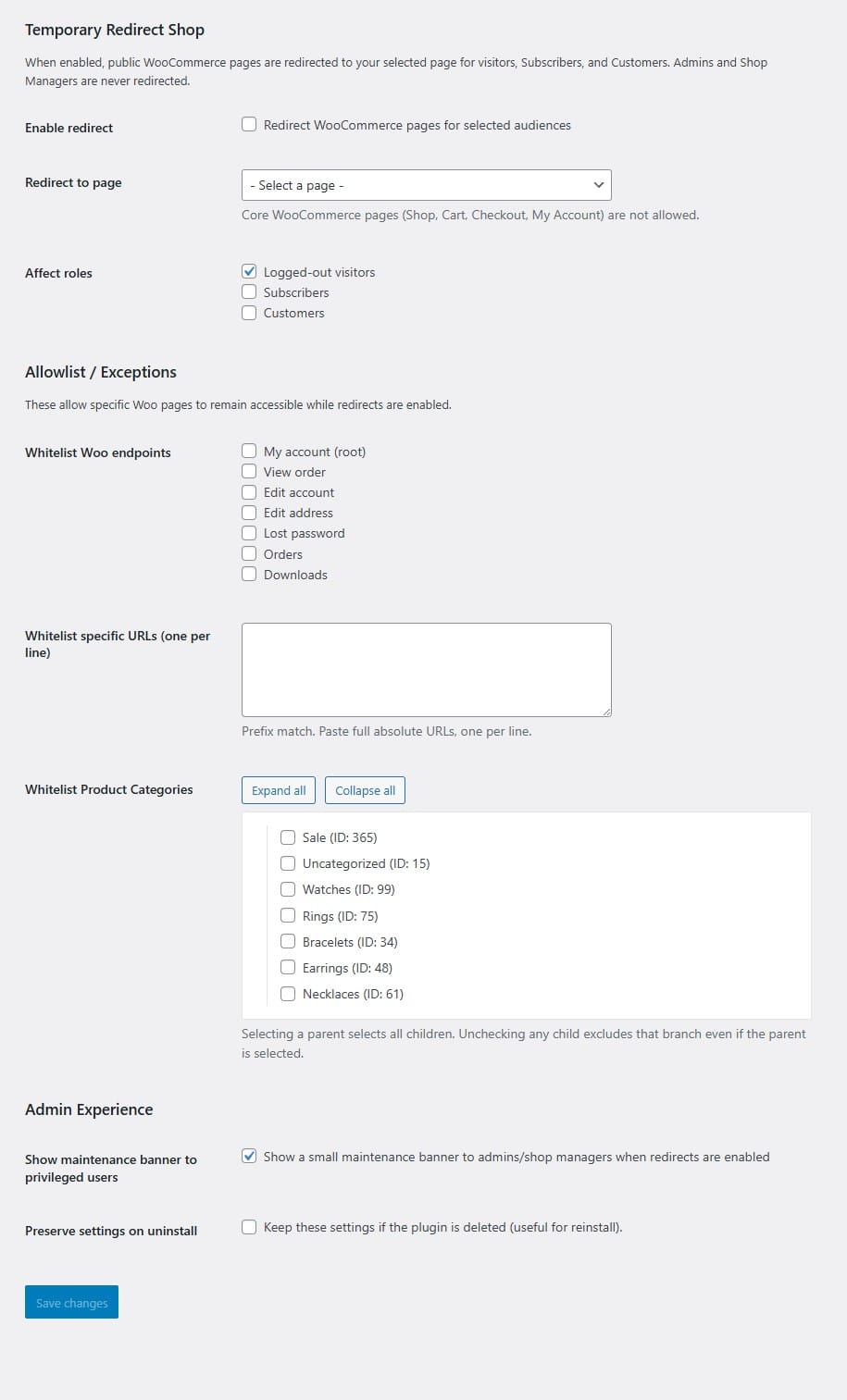
  • 1) Enable the redirect in WooCommerce settings.
  • 2) Choose the page visitors and customers should be sent to.
  • 3) Select which audiences should be affected.
  • 4) Add any endpoint, URL, or category exceptions you want to keep accessible.
  • 5) Save your changes.

Plugin Settings Screen

Temporary Redirect Shop plugin settings page for WooCommerce screenshot

Built for WooCommerce-specific redirect control

This plugin is designed around WooCommerce behavior rather than generic site-wide maintenance.

Settings are stored inside the native WooCommerce settings area, and the redirect system is aware of WooCommerce pages, audiences, endpoints, and category structures. It also skips admin, AJAX, CRON, REST/JSON, feeds, sitemaps, robots, and HEAD requests, so those contexts are not redirected.

That gives store owners more precise control over temporary storefront changes without treating the whole site like a simple on or off switch.

Keep checkout-related and account-related paths available when needed

During a temporary storefront redirect, you may still want certain customer actions to work normally.

For example, you may want customers to reach an order confirmation page, view an order, or reset a password even while most of the storefront is being redirected. Temporary Redirect Shop supports this through Woo endpoint whitelisting, so you can preserve important paths while still redirecting the broader store experience.

This gives you more flexibility than a blunt maintenance page because you can protect key customer flows while the rest of the storefront is temporarily out of view.

Who this plugin is for

Temporary Redirect Shop for WooCommerce is a strong fit for:

  • store owners planning maintenance windows
  • merchants preparing for a launch or relaunch
  • stores that want to pause the public shopping experience without interrupting internal access
  • businesses that need more control than a generic maintenance mode plugin
  • WooCommerce stores that want to keep selected pages, paths, or categories available during a temporary redirect

Why store owners use Temporary Redirect Shop

Store owners use this plugin when they want a simple, controlled way to temporarily change the storefront experience without creating confusion for shoppers or friction for staff.

It helps you:

  • redirect the public store to a page you choose
  • control who is affected
  • keep admins and shop managers working normally
  • allow key order and account-related paths to stay available
  • create exceptions by URL and product category
  • manage temporary storefront changes from WooCommerce settings

It also includes an option to preserve settings on uninstall if you want to keep your configuration for later use.

Built for Real WooCommerce Stores

Built for real WooCommerce stores, this plugin gives you more control than a generic maintenance mode setup.

You can temporarily redirect the public storefront, decide which users are affected, keep admins and shop managers working normally, and leave important paths available when needed. That makes it a practical fit for live stores handling maintenance, launches, seasonal pauses, and other short-term changes.

Frequently Asked Questions

Yes. You can choose whether logged-out visitors, Customers, and Subscribers are affected.

Yes. Admins and Shop Managers stay exempt while redirects are active.

Yes. You can whitelist Woo endpoints such as order-received, view-order, and lost-password

Yes. The plugin supports product-category whitelisting with parent and child category logic, including child overrides.

Yes. You can whitelist specific URL prefixes.

No. Core WooCommerce pages like Shop, Cart, Checkout, and My Account cannot be used as the redirect target.

No. It skips admin, AJAX, CRON, REST/JSON, feeds, sitemaps, robots, and HEAD requests.

Get Temporary Redirect Shop for WooCommerce

If you need a cleaner way to temporarily redirect your WooCommerce storefront, Temporary Redirect Shop gives you focused control without overcomplicating the process.

Choose who is affected, keep your admins exempt, preserve important paths when needed, and manage the entire setup from WooCommerce settings.

TOP