How to Allow Backorders for Specific Categories in WooCommerce
Not every store wants the same backorder rule across the entire catalog. In many WooCommerce stores, some products should be available on backorder while others should not. You may have one category for preorder items, one for made-to-order products, or one product line where delayed fulfillment is completely normal. In that kind of catalog, category-based control makes a lot more sense than changing products one by one. Backorder Manager is built for exactly that kind of setup, letting you apply one rule across selected categories instead of treating every product as a separate job.
The problem is that once you need category-level rules, the default workflow starts to feel clumsy. What should be one clean decision turns into repeated product edits, manual checks, and ongoing maintenance. That gets even more frustrating when new products are added to the category and you have to keep revisiting the same settings again and again.
Why category-based backorders matter
A lot of stores do not need a blanket rule for everything. They need a more selective setup.
Maybe one category contains products that are always safe to sell on backorder. Maybe another category should stay stricter because of supplier limits or fulfillment timing. Maybe you only want backorders available for certain collections while the rest of the store keeps its normal stock behavior.
That is where category-based control becomes useful. Instead of thinking in terms of individual products, you can manage backorder behavior around how the catalog is actually organized. The plugin supports applying rules to the entire catalog or to a selected set of product categories, which makes it a better fit for stores with mixed inventory workflows.
Why the manual approach gets hard to maintain
Without category-based control, most store owners end up handling this manually. They open products one at a time, change the same setting repeatedly, and try to keep track of which parts of the catalog are supposed to behave differently.
That may be fine for a small store, but it becomes much harder to manage once the catalog grows. It is easy to miss products. It is easy for new items to get added without matching the intended policy. And it becomes difficult to keep the store consistent when the rule really belongs at the category level, not the product level.
If your main goal is a storewide rule instead, you may also want to read How to Enable Backorders for All Products in WooCommerce
A cleaner way to apply backorders by category
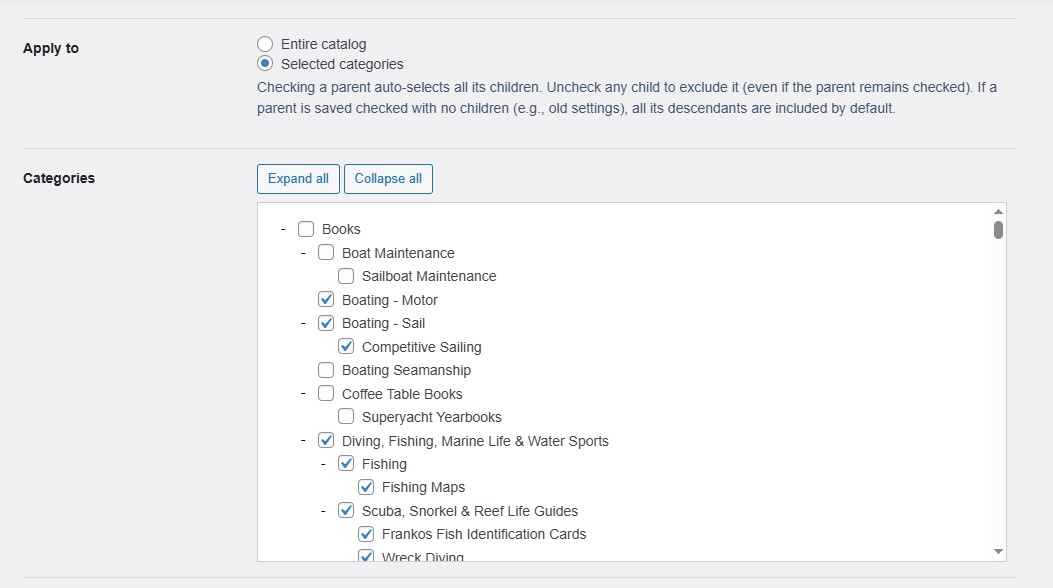
Backorder Manager gives you a more practical way to handle this. You can choose the backorder mode you want, set the scope to selected categories, and manage the rule from one place instead of repeating the same work across individual products. The available modes are Allow, Allow but notify, and Disable.
That makes category-based backorders much easier to manage in a real store. You are not just turning backorders on. You are deciding which part of the catalog the rule belongs to and keeping that decision easier to maintain over time.
The plugin also supports a useful category workflow: selecting a parent category includes child categories by default, and specific child categories can be excluded if you need to narrow the rule. That gives you more control when your catalog structure is more detailed than a simple one-category setup.
For a full overview, visit the category-based backorder control page.