How to Manage WooCommerce Backorders Without Editing Products One by One
Managing backorders one product at a time in WooCommerce can get old fast. It may be workable when you only have a few products, but once your catalog grows, repeated edits turn into a slow and frustrating routine. You end up opening product after product, applying the same setting again and again, and trying to remember which items were supposed to be handled differently. Backorder Manager is built to replace that kind of product-by-product maintenance with a cleaner rules-based setup inside WooCommerce settings.
For many stores, the real problem is not just changing one setting. It is keeping backorder behavior consistent across the catalog without creating extra admin clutter. If most of your store should follow one policy, or if entire categories should behave the same way, handling every product manually quickly becomes hard to maintain. The plugin is designed around that exact use case: one place to manage backorder behavior, with support for global rules, category scope, and product-level exceptions when needed.
Why the default approach becomes a hassle
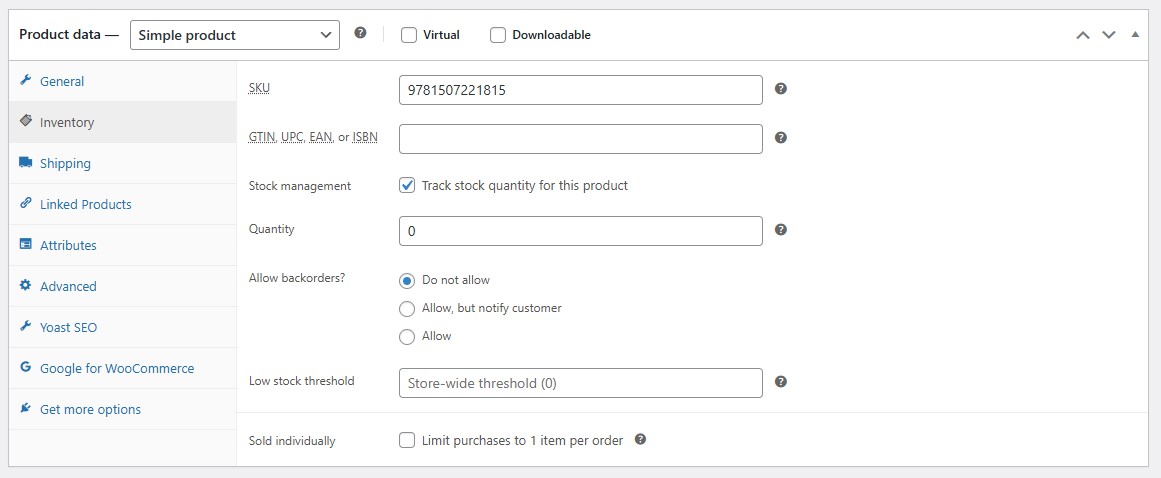
The more products you have, the less practical it is to manage backorders manually. A setting that should take one decision can turn into dozens of repeated clicks. That is especially true when your store has a clear overall policy, but WooCommerce’s default workflow still pushes you toward individual product edits.
That kind of setup usually creates a few problems at once:
- it takes more time than it should
- it is easy to miss products
- changes become harder to track later
- category-wide rules are harder to keep consistent
- exceptions become something you have to remember instead of something you can manage cleanly
If your main goal is to apply one storewide rule first, you may also want to read How to Enable Backorders for All Products in WooCommerce.
A cleaner way to manage backorders
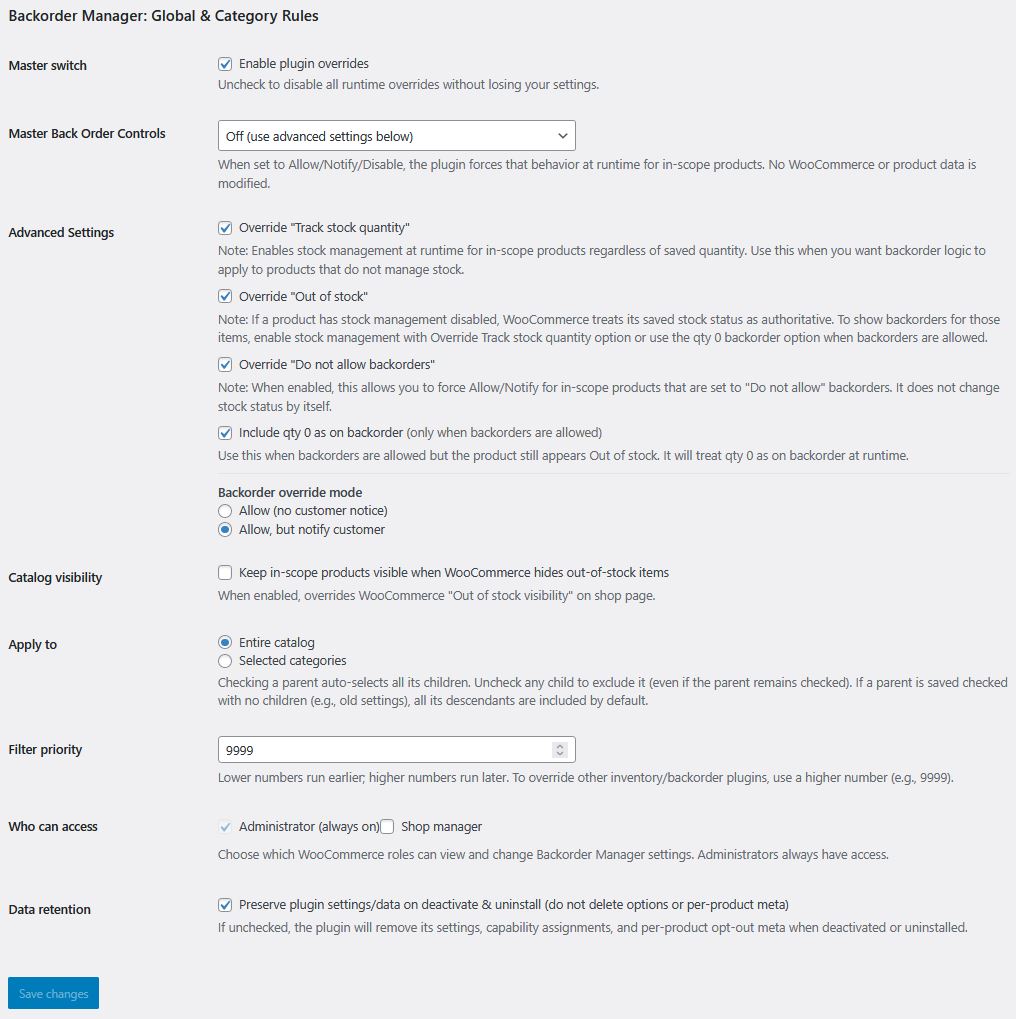
Backorder Manager gives you a more centralized way to handle this. Instead of making the same change across product after product, you choose the backorder mode, choose the scope, and then manage the rule from one place inside WooCommerce settings. The available modes are Allow, Allow but notify, and Disable, and the scope can be the entire catalog or selected categories.
That gives you a much more practical workflow for real stores. You can set the broader rule once, keep your catalog easier to manage, and avoid turning a simple stock policy into an ongoing editing job. The plugin is also built to run at runtime rather than rewriting your stored product data, so you can manage behavior without turning the catalog itself into a mass-edit project.
For a full overview, visit the manage WooCommerce backorders from one place page.
Useful for stores that need consistency without rigidity
This kind of setup is especially useful when:
- most of your products should follow the same backorder policy
- you want category-based rules instead of item-by-item changes
- you need a cleaner admin workflow as your store grows
- you want to reduce repeated edits without losing flexibility
- you still need some products to stay outside the main rule
That last point matters. A lot of stores want centralized control, but not an all-or-nothing setup. Backorder Manager supports product opt-out on the product edit screen, which means you can still make room for special cases without giving up the larger rule-based approach.
If different parts of your catalog need their own rules, read How to Allow Backorders for Specific Categories in WooCommerce