How to Enable Backorders for All Products in WooCommerce
If you want to enable backorders for all products in WooCommerce, the real challenge is not finding the setting. The real challenge is applying one clear rule across the whole store without creating a product-by-product maintenance job.
That problem shows up quickly once a catalog starts to grow. What feels manageable with a few products becomes repetitive with dozens, and frustrating with hundreds. You end up opening product after product, applying the same stock behavior again and again, and trying to keep the entire catalog consistent by hand.
For stores that want one default backorder policy across most or all products, that is not a very practical workflow.
Why storewide backorders become difficult to manage
A lot of merchants do not just want backorders available on a few items. They want a broader rule that applies across the catalog.
That could be because the store regularly sells through inventory before restocking. It could be because backorders are part of the normal sales process. It could be because the business wants a simpler way to keep products purchasable instead of constantly revisiting stock settings product by product.
The issue is that once your goal becomes “apply the same rule everywhere,” the default approach starts to feel much more manual than it should.
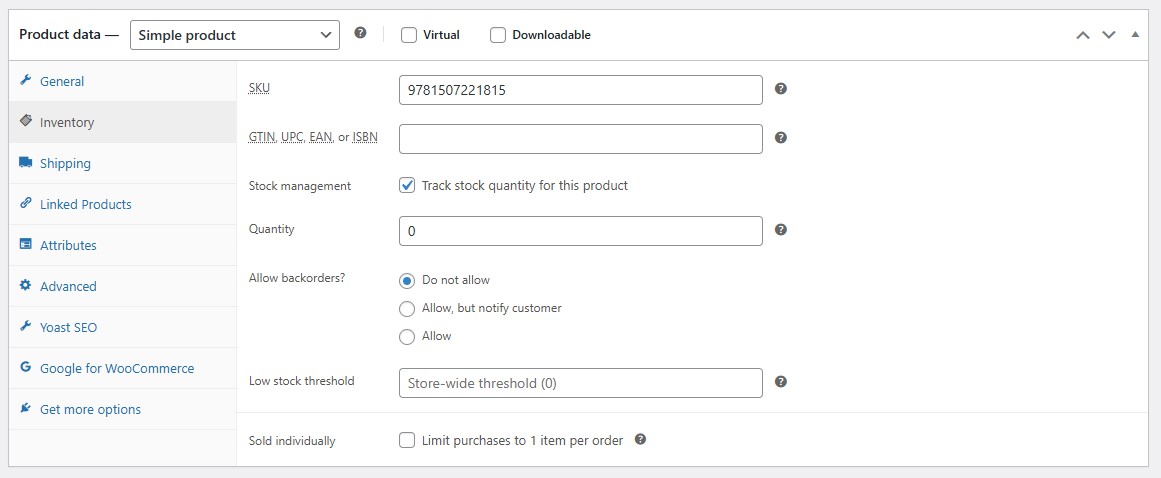
Changing backorder settings on invidiual products is very tedious and hard to maintain.
Why the usual approach does not scale well
Without a better setup, enabling backorders across the store often means making repeated edits across individual products. Even if the rule itself is simple, the work around it is not.
That usually creates the same problems over and over:
- too many repeated product edits
- too much room for inconsistency
- too much time spent checking whether products match the intended rule
- too much effort required when the policy changes later
The bigger the catalog gets, the harder it is to justify handling something this broad one product at a time.
If you are already thinking ahead to exceptions, you may also want to read How to Set Global WooCommerce Backorders with Product-Level Exceptions.
A cleaner way to manage storewide backorders
Backorder Manager gives you a simpler way to apply one backorder policy across your WooCommerce catalog from one place.
Instead of treating each product like a separate task, you can manage the broader rule centrally and keep your setup easier to maintain. That is a much better fit for stores that want consistency across the catalog without turning inventory settings into repetitive admin work.
This is especially useful when you want most products to follow the same policy and you do not want to keep recreating that rule product by product.
For a full overview, visit the global backorder rules for WooCommerce page.
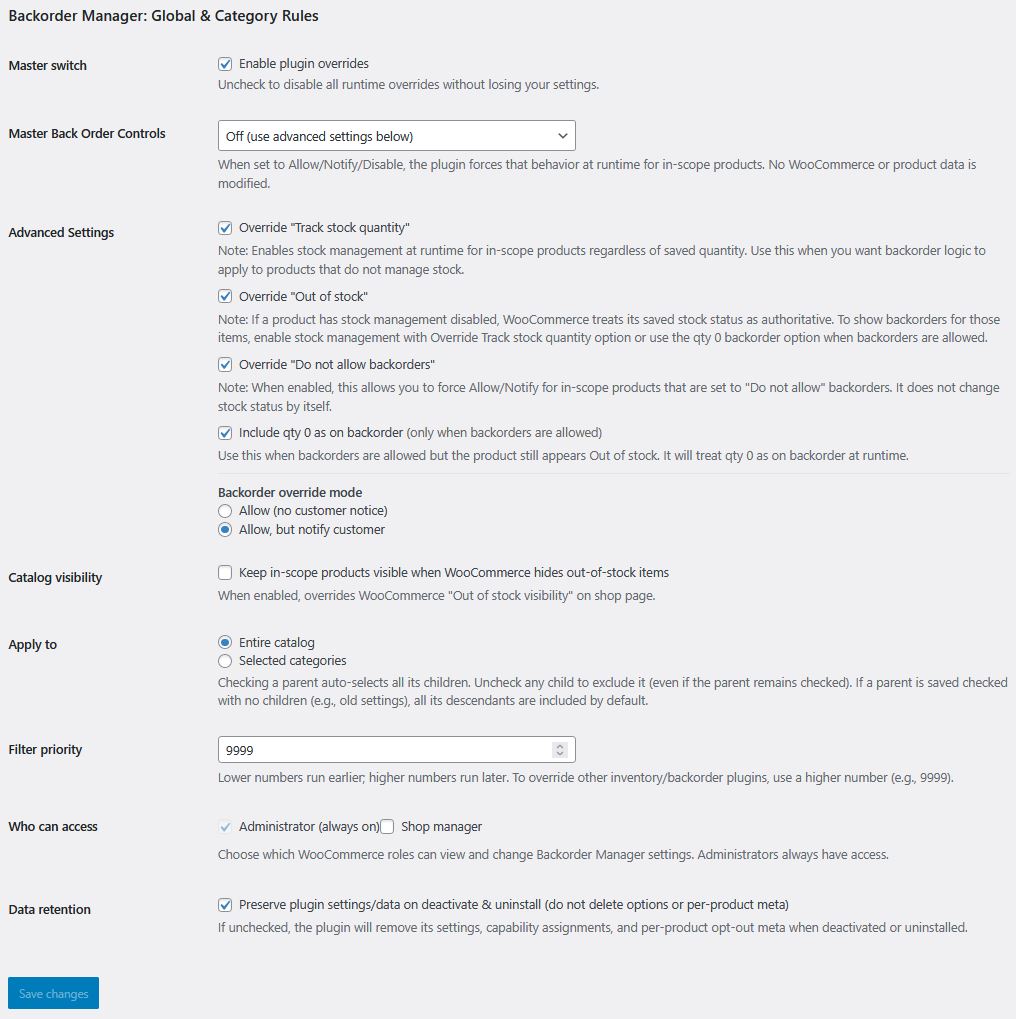
All backorder settings are managed on a single page (except for individual product exceptions)